

MeXkey3 Smart Card
Thanks to the open-source project Canokey-core
MeXkey3 Menu Explanation
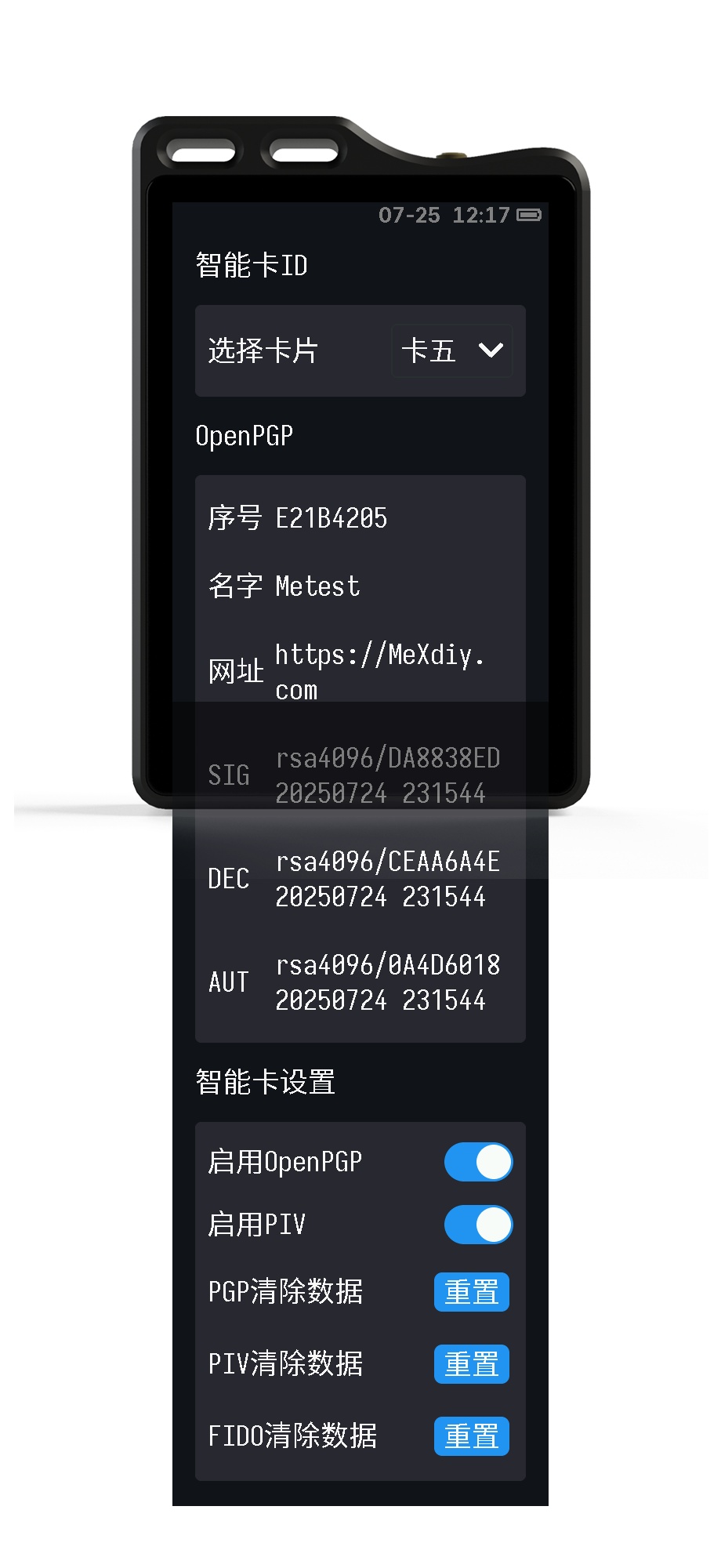
Select Card
- There are five cards that can be switched.
- Each card contains independent OpenPGP, PIV, and FIDO.
- You can reselect the card number to reconnect.
OpenPGP Card Information
Displays relevant information.
Smart Card Settings
-
Enable OpenPGP
- Experimental feature. When disabled, OpenPGP related functions are not provided.
-
Enable PIV
- Experimental feature. When disabled, PIV related functions are not provided.
-
NDEF Write Protection
- When enabled, the content of NDEF tags cannot be modified.
-
PGP Clear Data
- Clears the PGP data of the current card number.
-
PIV Clear Data
- Clears the PIV data of the current card number.
-
FIDO Clear Data
- Clears the FIDO data of the current card number.
-
NDEF Clear Data
- Clears the NDEF data of the current card number.
FIDO
- Resident Keys: 64
OpenPGP
Default Admin PIN is 12345678
Default PIN is 123456
Supported Algorithms
- RSA2048
- RSA3072
- RSA4096
- X25519
- Ed25519
- NIST P-256 (secp256r1, prime256v1)
- NIST P-384 (secp384r1)
- secp256k1
All algorithms support on-card generation.
Installation and Configuration
Windows System
- Download and install Gpg4win.
Linux System
-
Install necessary software:
-
Configure device identification information:
Two methods, choose one. It is recommended to use the udev rule.
-
Add UDEV rule
-
Create the rule file:
-
Paste the rule:
-
Reload the rules:
-
-
Modify the libccid_Info.plist file
-
Modify libccid_Info.plist:
-
Configure scdaemon:
-
-
Smart Card Operation Guide
On Windows, you can use the command line or a graphical interface. For the graphical interface, please refer to Kleopatra Graphical Interface.
Kleopatra is included in gpg4win, no separate installation is needed.
Creating Certificates
Common Command Operations
- Check Smart Card Status
- Enter Smart Card Edit Mode
- Generate Key Pair (Admin Operation)
- Enable User Interaction Flags (UIF)
- Change PIN (Important!)
- Default PIN:
123456 - Default Admin PIN:
12345678 - It is strongly recommended to change them on first use.
- Exit Smart Card Edit
Kleopatra Graphical Interface
Open the software and click on Smart Card.
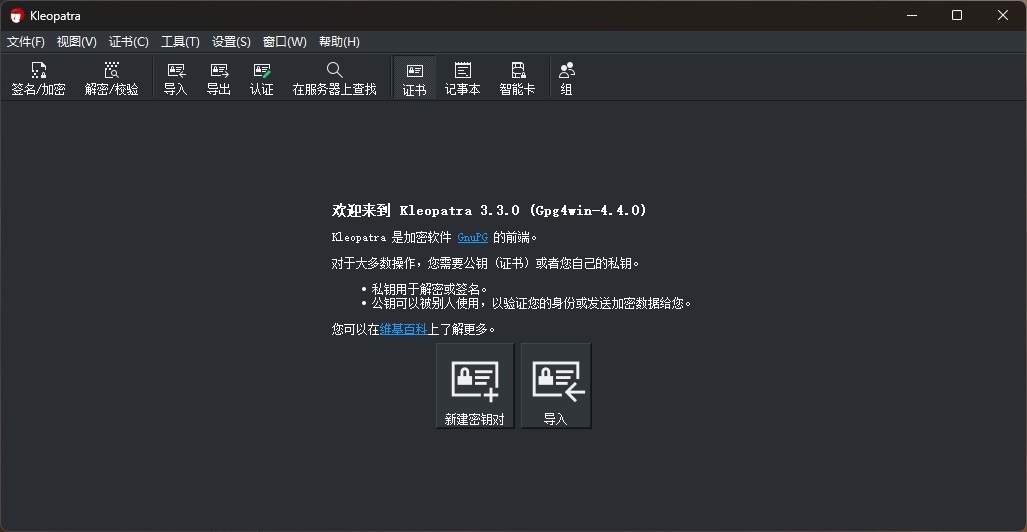
Click Card Actions in the upper right corner and select Generate New Key.
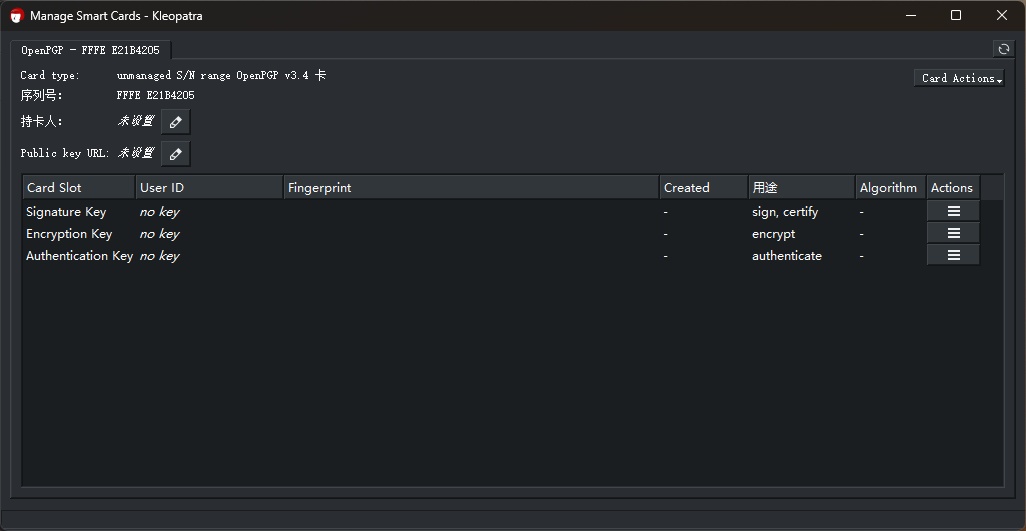
Fill in the information as needed, choose whether to back up, then click OK.
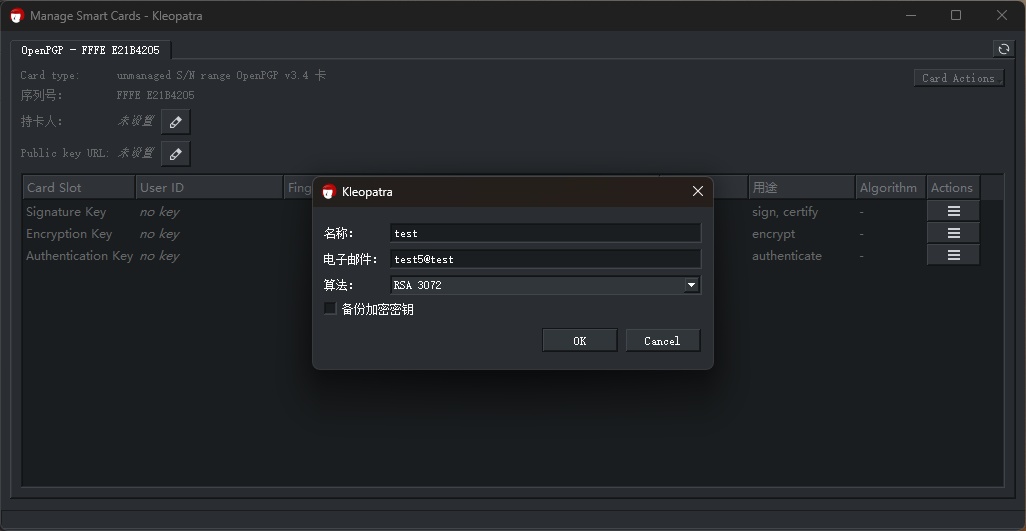
During the process, you will be prompted to enter the Admin PIN and PIN several times. Please note the distinction. The default Admin PIN is 12345678, and the default PIN is 123456.
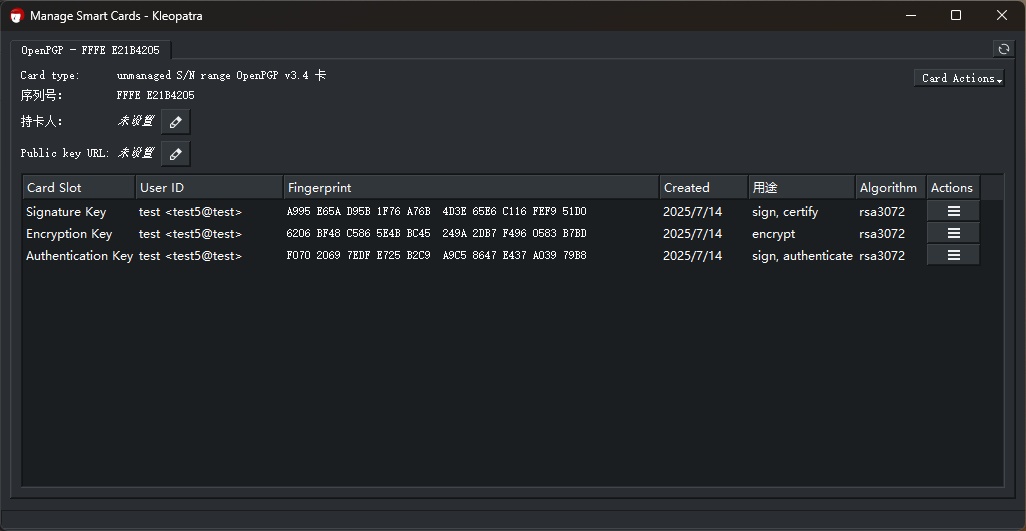
Completion is as shown above.
Creating a Revocation Certificate
Please keep the revocation certificate safe.
Common Command Operations
-
Check the key fingerprint:
-
Generate a revocation certificate:
Kleopatra Graphical Interface
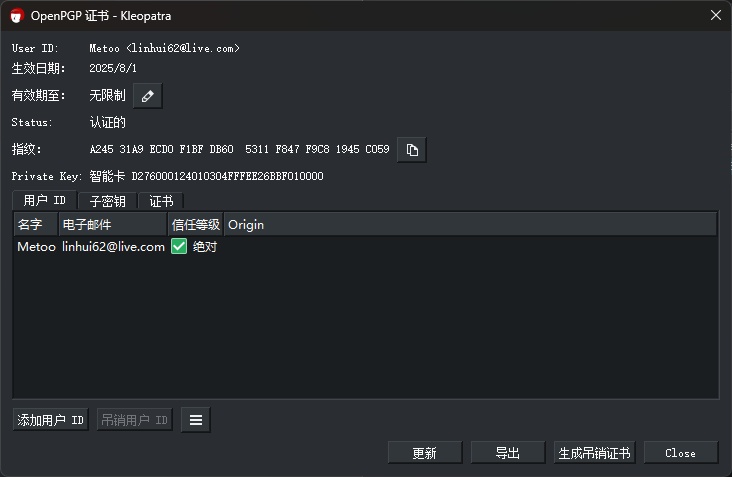
After opening the software, double-click the certificate in the certificate interface, and click Generate Revocation Certificate in the lower right corner.
Uploading Certificate to Server
Common Command Operations
-
Check the key fingerprint:
-
Upload to server:
Kleopatra Graphical Interface
- After opening the software, right-click the certificate in the certificate interface and select
Publish on Server.
Get Public Key Certificate Link
- Security First: Change the default PIN immediately after first use.
- Physical Confirmation: After enabling UIF, touch confirmation is required when using smart card functions.
- Key Validity Period: For production environments, it is recommended to set a validity period (e.g., 1y = 1 year).
If you encounter device recognition issues, On Windows, try switching cards in the Smart Card menu. On Linux, try restarting the PC/SC service:
sudo service pcscd restart
PIV
- PIN: 123456
- PUK: 12345678
- Management Key:
010203040506070801020304050607080102030405060708
Supported Algorithms
| Algorithm Name | Algorithm ID |
|---|---|
| RSA3072 | 05 |
| RSA4096 | 16 |
| secp256k1 | 53 |
| Ed25519 | E0 |
| X25519 | E1 |
| SM2 | 54 |
Supported Slots
- 9A: PIV Authentication
- 9E: Card Authentication
- 9C: Digital Signature
- 9D: Key Management
- 82, 83
Install yubico-piv-tool.
Using PIV for SSH via PKCS #11
Reference link: SSH with PIV and PKCS11
1. Import or generate a key in slot 9a (any slot works) (choose one):
Import:
Generate:
2. Create a self-signed certificate for this key. The only purpose of the X.509 certificate is to satisfy the requirements of the PIV/PKCS #11 library. It needs to be able to extract the public key from the smart card, and it does this via the X.509 certificate.
The default PIV PIN is 123456.
3. Load the certificate.
4. Find out where ykcs11 is installed.
For Debian-based systems, the ykcs11 module is located at /usr/local/lib/libykcs11.
On macOS, it is located at /usr/local/lib/libykcs11.dylib.
On Windows, it is located at C:\Program Files\Yubico\Yubico PIV Tool\bin\libykcs11.dll.
5. Export the public key in the correct format and add it to the authorized_keys file on the target system.
This command will export all keys stored on the YubiKey. The slot order should remain constant, so you can identify the public key associated with your target private key.
6. Authenticate to the target system using the new key.
7. (Optional) You can also set it up to work with ssh-agent:
If this step reports an error, please refer to issues/527.
Confirm that ssh-agent has found the correct key and obtained the public key in the correct format by running: