

MeXkey3 Password Management
Supports Kdbx version 4.1 file format (latest version).
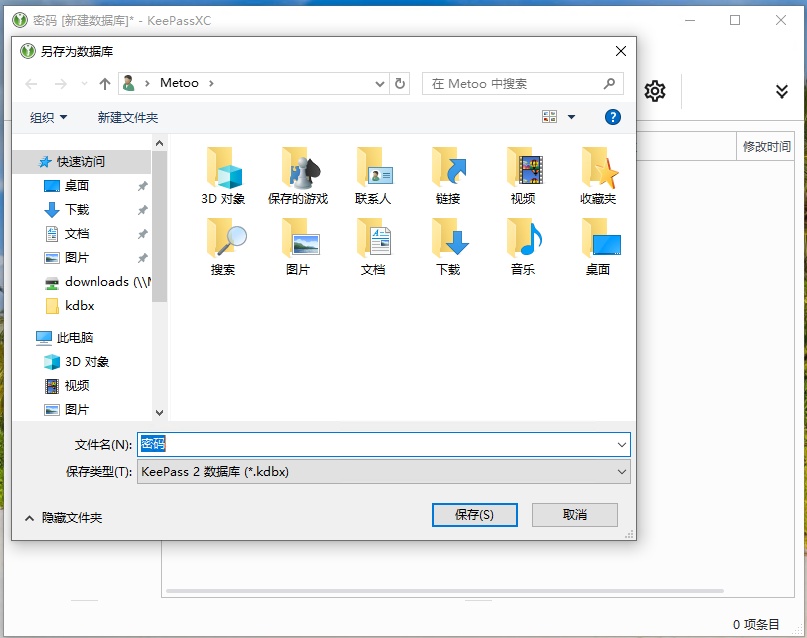
Please do not use Chinese names for Kdbx files.
Please place only one kdbx file in the USB drive.
Tested client software:
KeePassXC Recommended
Test Kdbx file, containing 30 groups, 100 entries per group, total 3000 entries. Download Link
The password for the test file is mexdiy.
MeXkey3 Menu Explanation
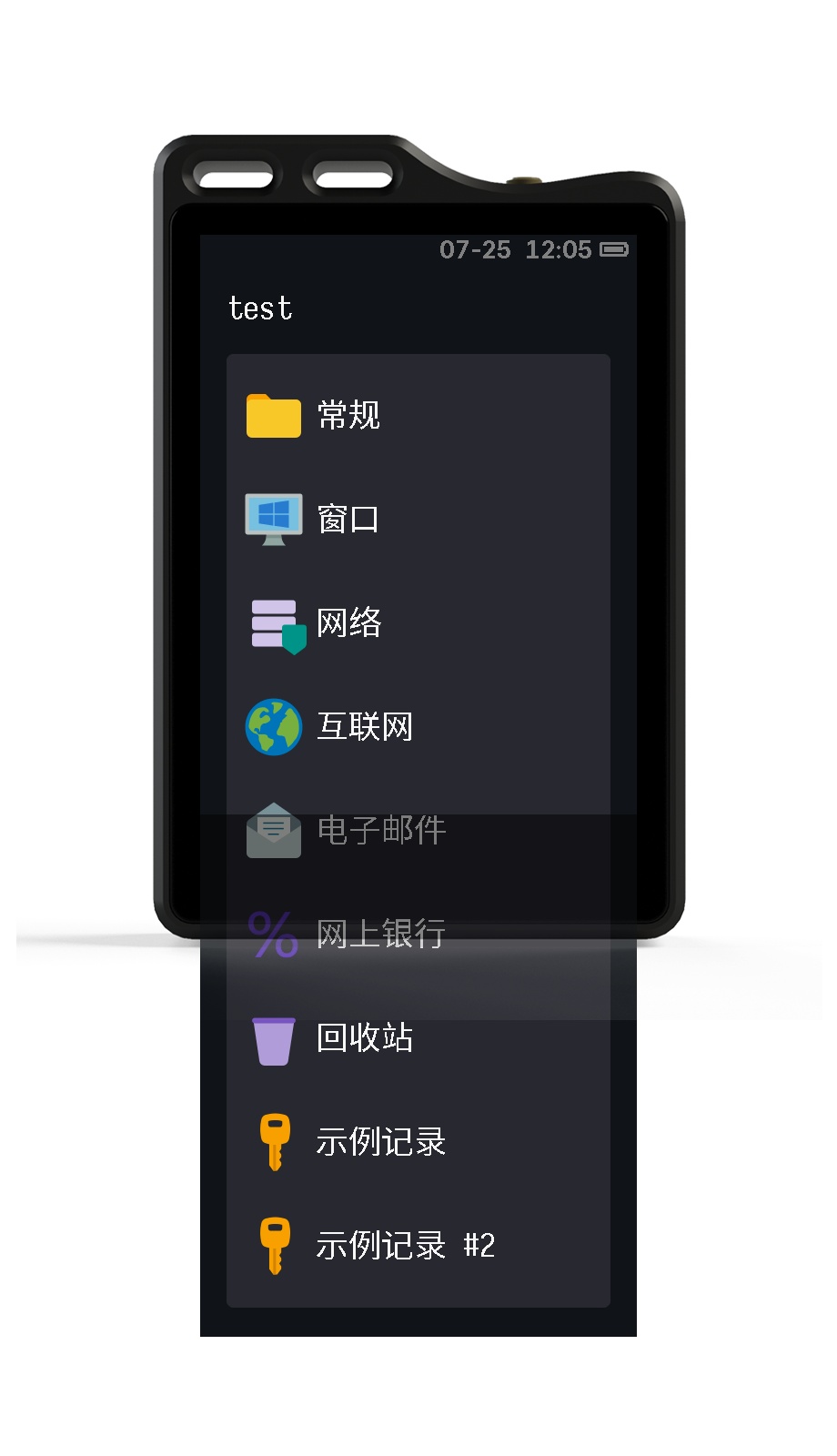
1. Clear List Display
- Displays both folders and entries from KeePass simultaneously.
- Sorting order is consistent with KeePass, making it easy to find and manage.
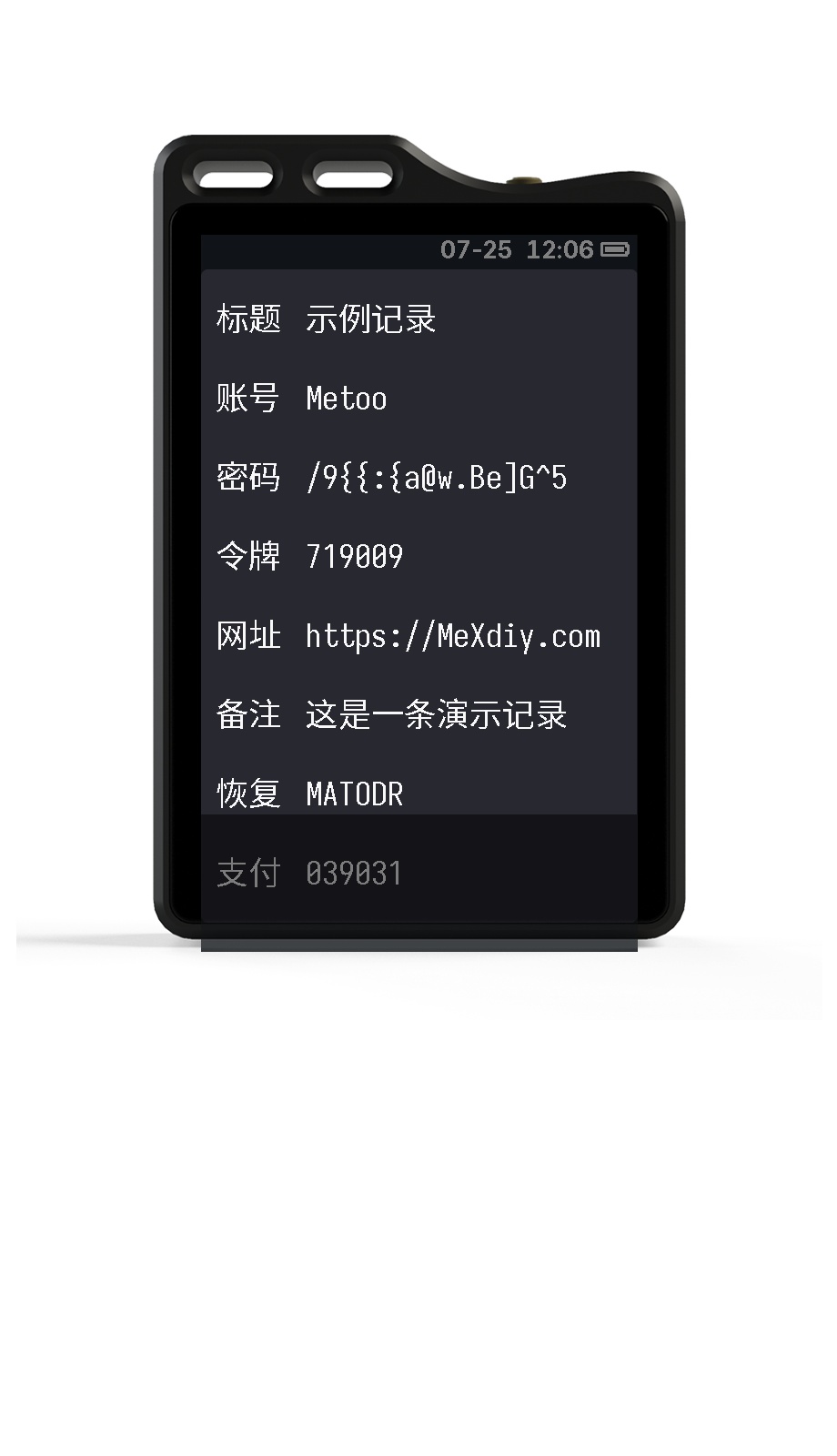
2. Complete Entry Content
- Supports displaying additional attributes from KeePassXC.
- Password Hidden Display: Passwords are hidden by default as
******, but can still be entered correctly by tapping. - Supports password with Enter function: swipe left on the details page to append an Enter key.
3. Convenient Data Sharing
- Long press on an entry to transfer data via:
- Generating a QR code
- Generating an NFC tag
- If this function is not needed, it can be turned off in the settings.
Creating a New Password Database
Database Requirements
- Maximum of 1024 entries per directory.
- Maximum of 128 subdirectories per directory.
- Maximum of 32 values per entry (including custom fields).
- Maximum search results: 64 entries.
KeePass Instructions
Installation and Configuration
Download KeePass and install normally.
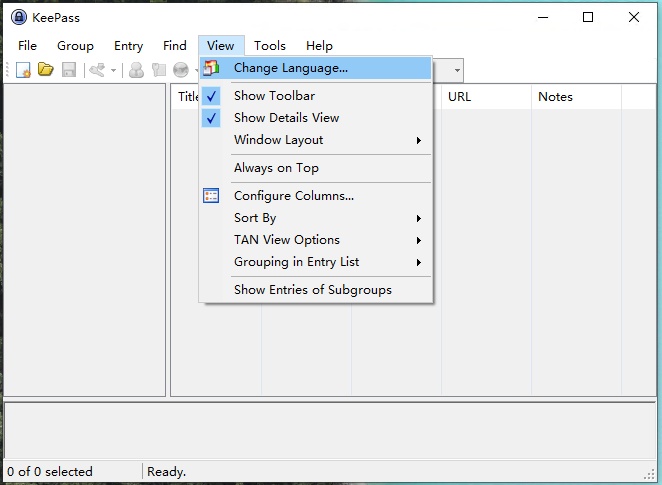
Download the Chinese translation plugin, unzip it, and place it in the Languages folder under the KeePass software installation directory.
Run KeePass and switch the language:
Create a New Password Database
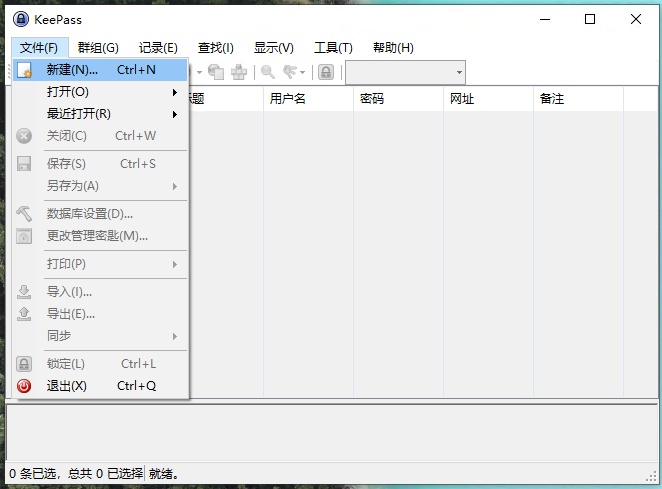
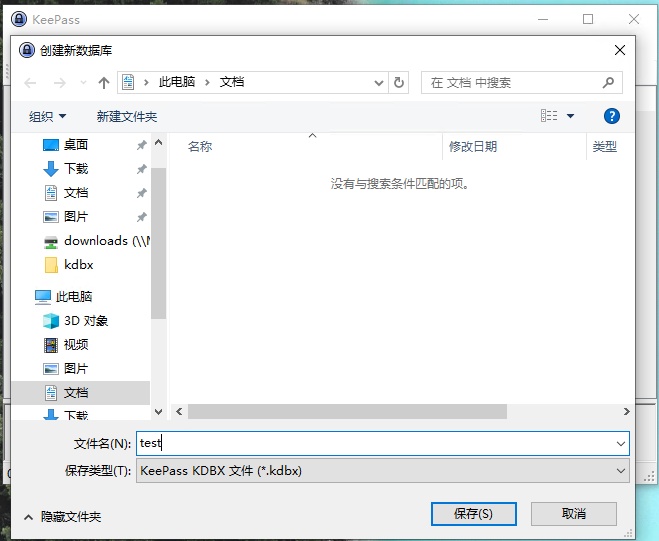
Choose the storage location and custom file name for the database.
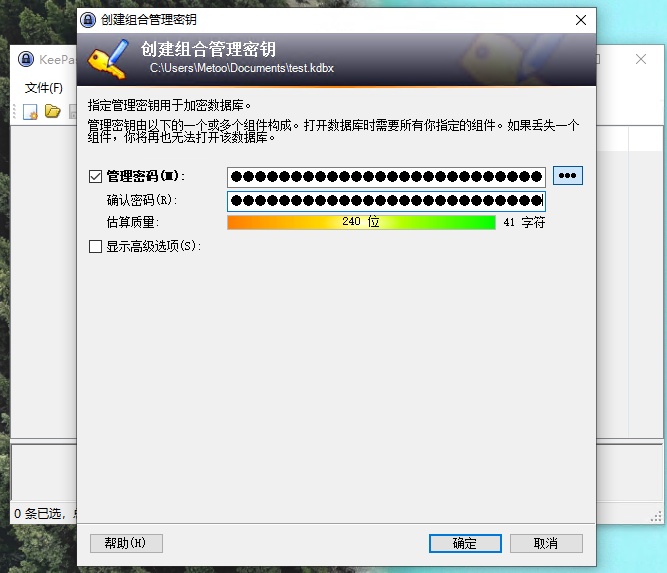
Set the password.
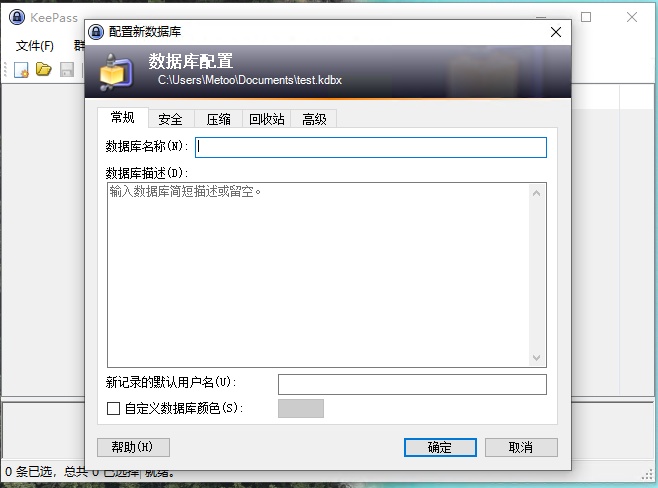
Fill in as you prefer.
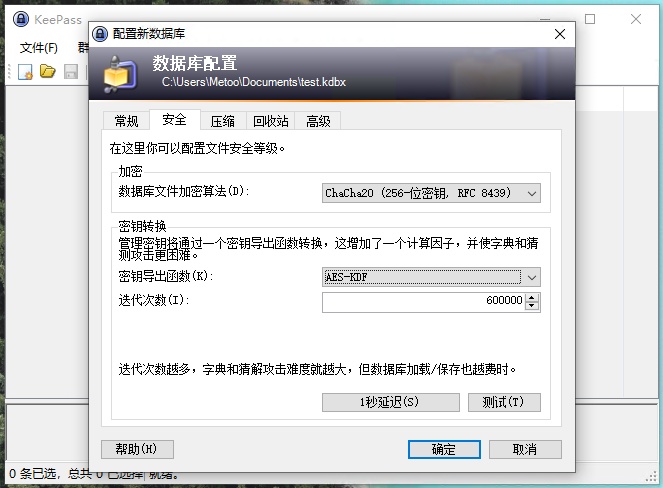
Security configuration. Strictly configure as shown below. The larger the iteration count, the longer it will take for MeXkey3 to decrypt for the first time. It is recommended to keep it within 100,000.
Disable compression.
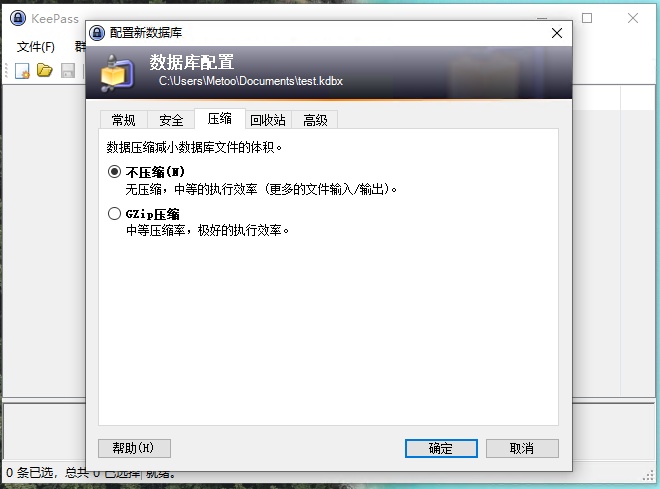
Then confirm. There will be some example entries inside; you can delete them yourself.
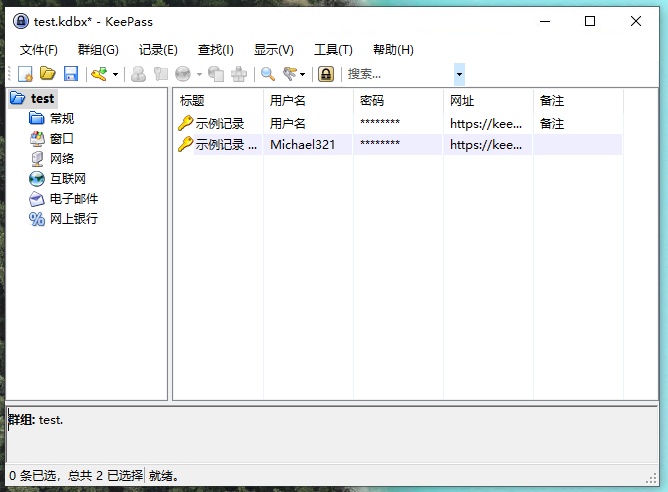
KeePassXC Instructions
This explanation is for Windows. For other systems, follow the official instructions for installation and use; they are similar.
Installation and Configuration
Download KeePassXC.
Install normally.
You may also need Microsoft Visual C++. Download Link
Create a New Password Database
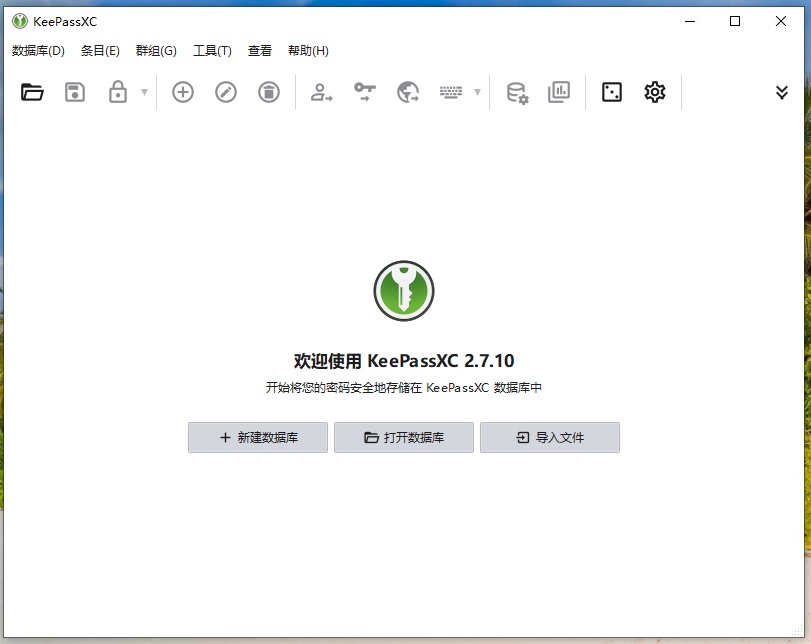
After running KeePassXC, click "New Database".
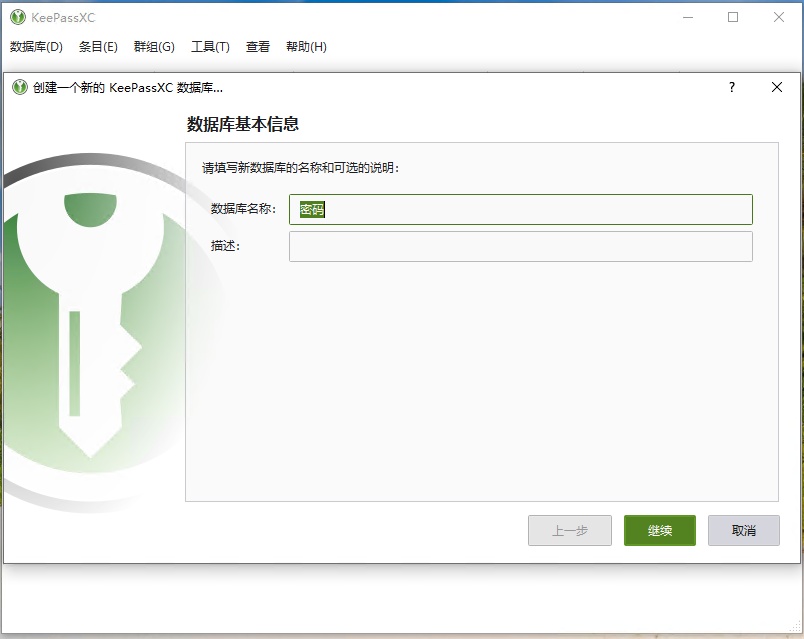
Add information as you prefer.
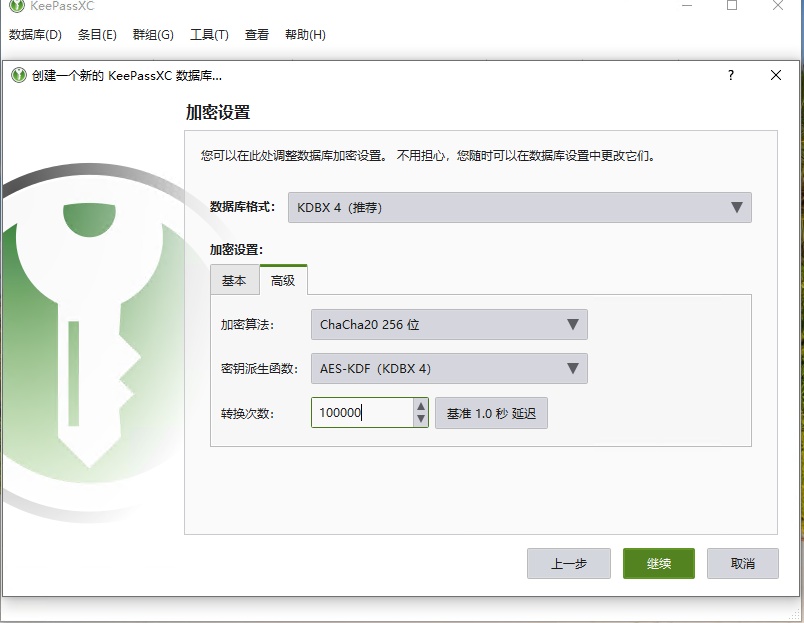
Encryption settings must be strictly configured as below. The larger the transformation iterations, the longer it will take for MeXkey3 to decrypt for the first time. It is recommended to keep it within 100,000.
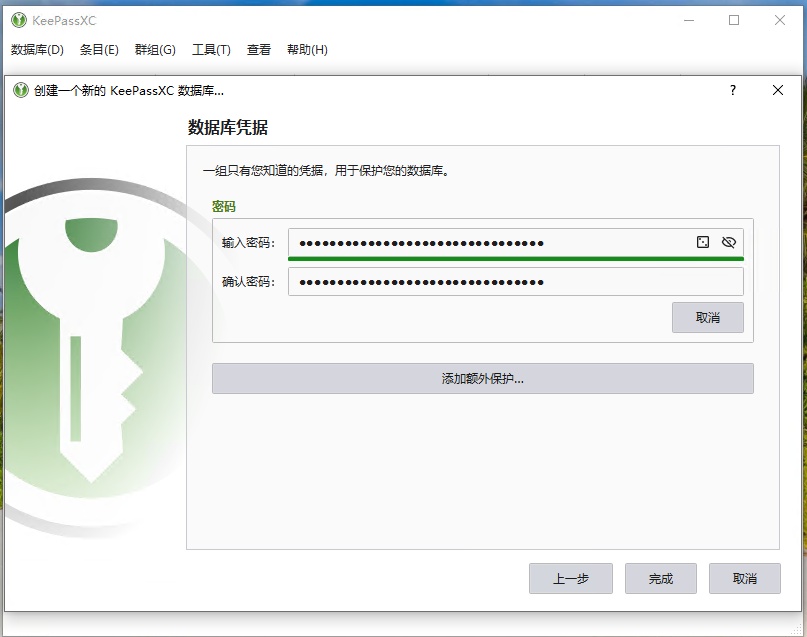
Set the password.
Save the database file.
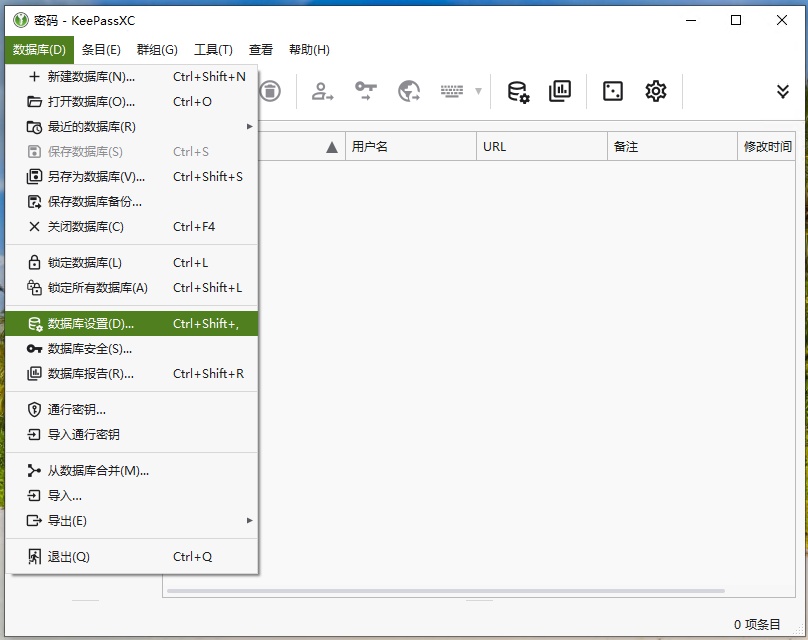
Disable database compression.
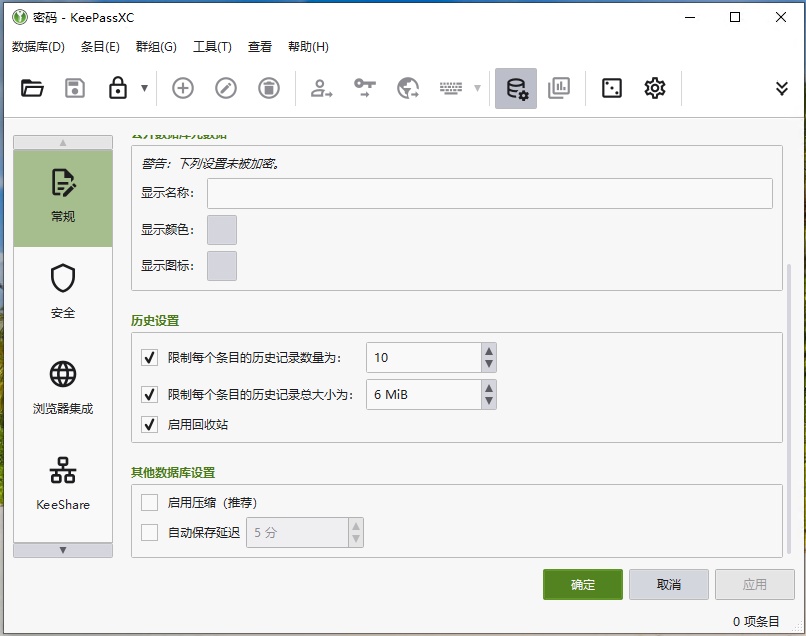
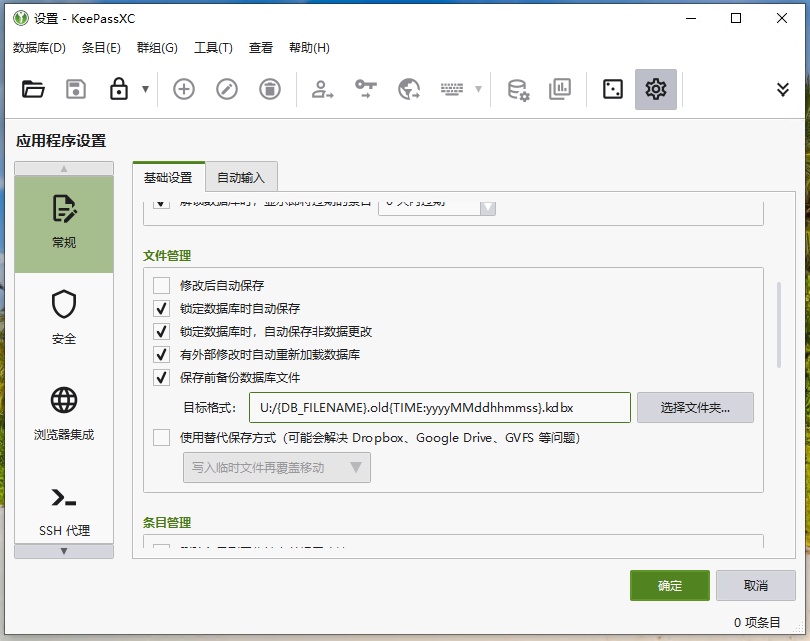
Other Recommended Settings (Optional)
Turn off Automatically save after modification.
Enable Backup database file before saving and set the backup path. It is recommended to set the backup file name as {DB_FILENAME}.old{TIME:yyyyMMddhhmmss}.kdbx.
Importing to MeXkey3
- In MeXkey3 settings, turn on
USB Mode. - Copy or move the Kdbx password database file to the MeXkey3 USB drive.
- Open the
MeXkeyConfig.txtfile on the MeXkey3 USB drive, enter the password for the Kdbx file in the corresponding location, and save the file. - Eject the MeXkey3 USB drive, then turn off
USB Modein MeXkey3 settings. - Click
Reload Databasein the settings.
MeXkey3 takes 3 seconds for 10,000 key iterations.
Other
Importing Edge Browser Data to kdbx
-
Open the browser, enter
edge://wallet/passwordsin the address bar to open the password management page. You can also find it in the settings. -
Export passwords as a
csvfile.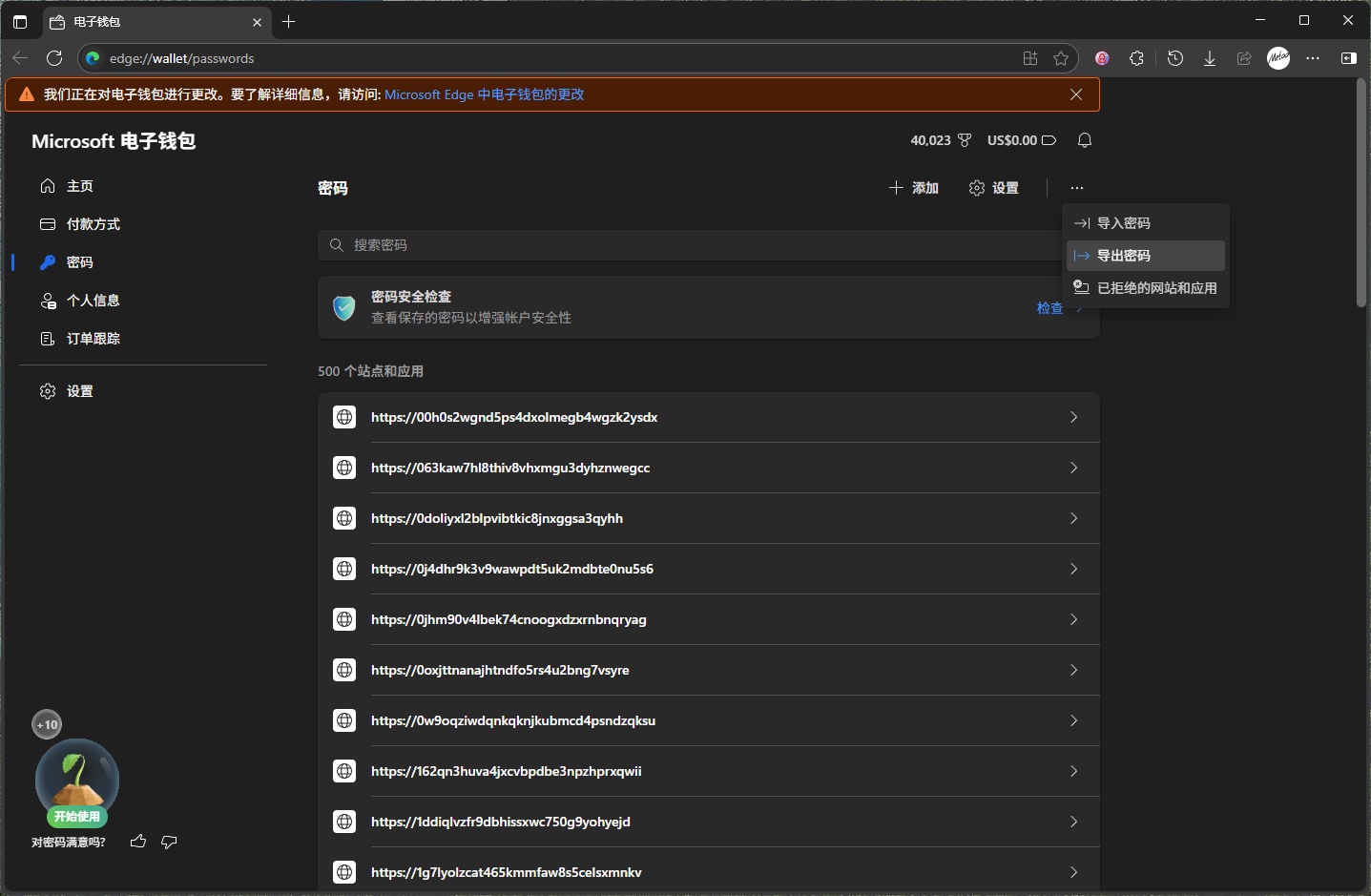
-
Open the newly created kdbx file and select Import.
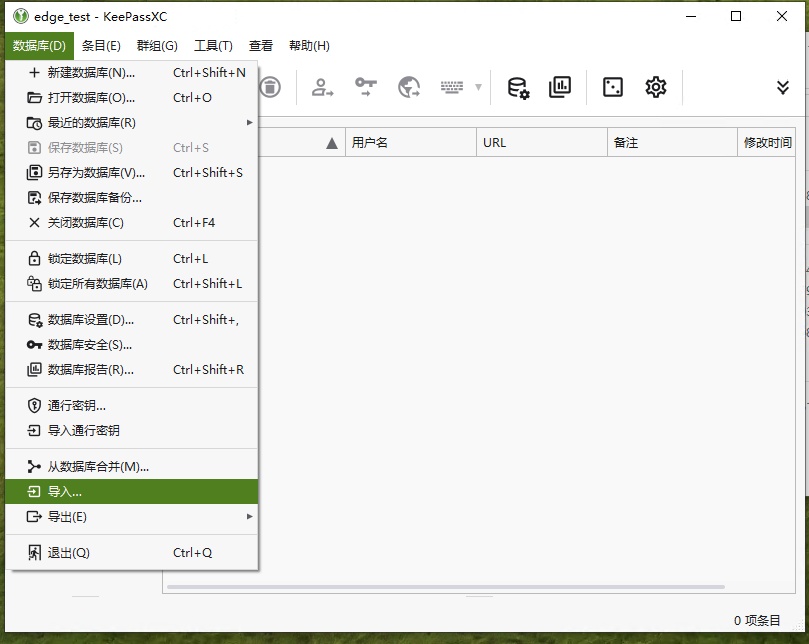
-
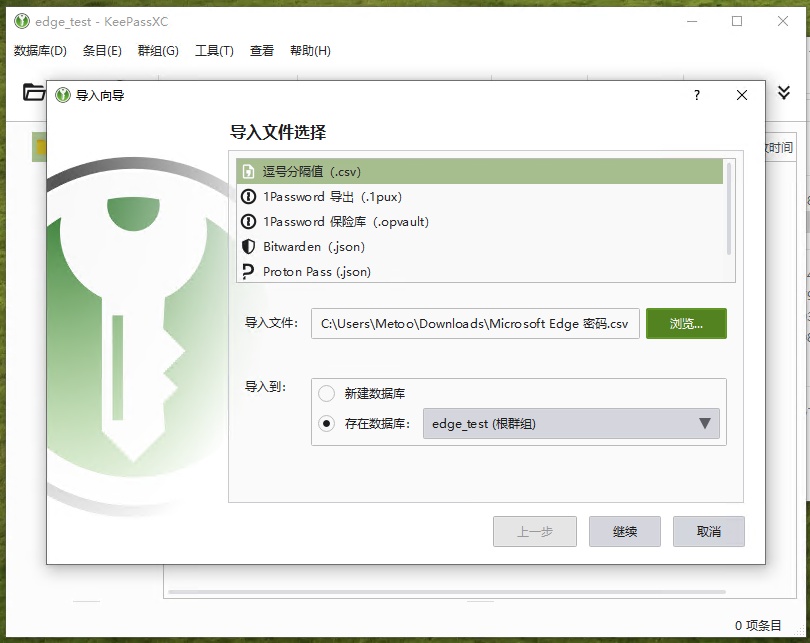
Choose the import file and select the destination database.
-
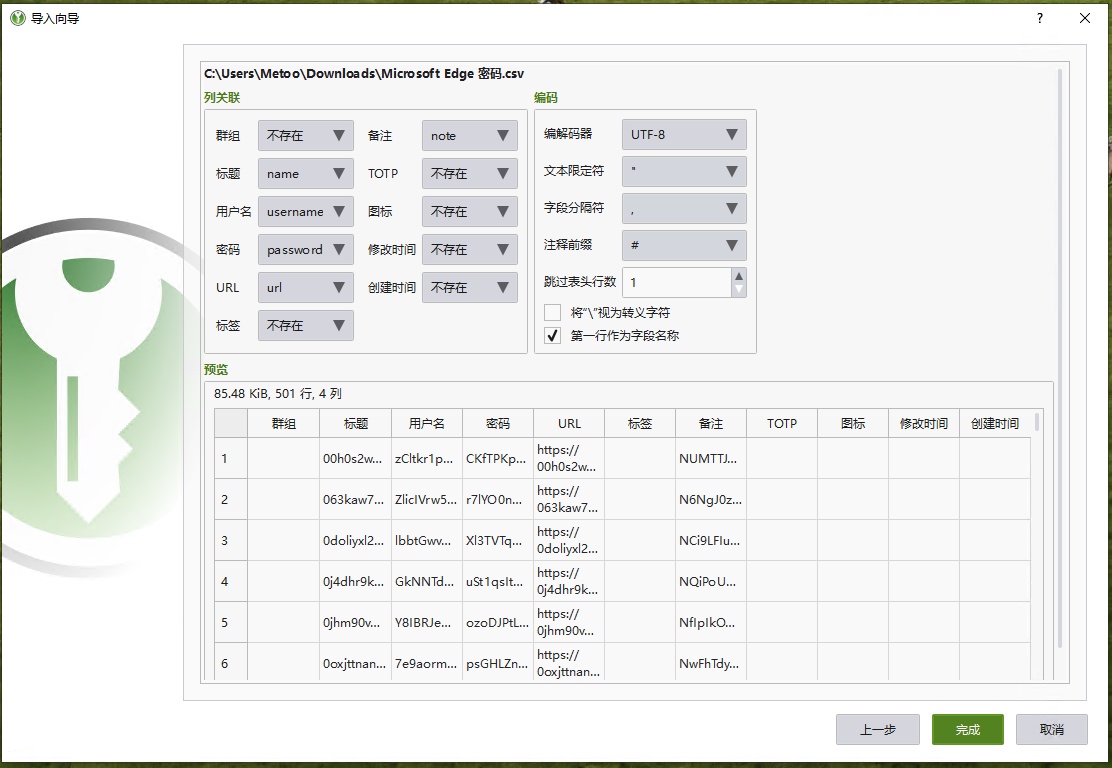
Edit the data mapping. For Edge, it looks like the image below. Data exported from other password managers may differ.
-
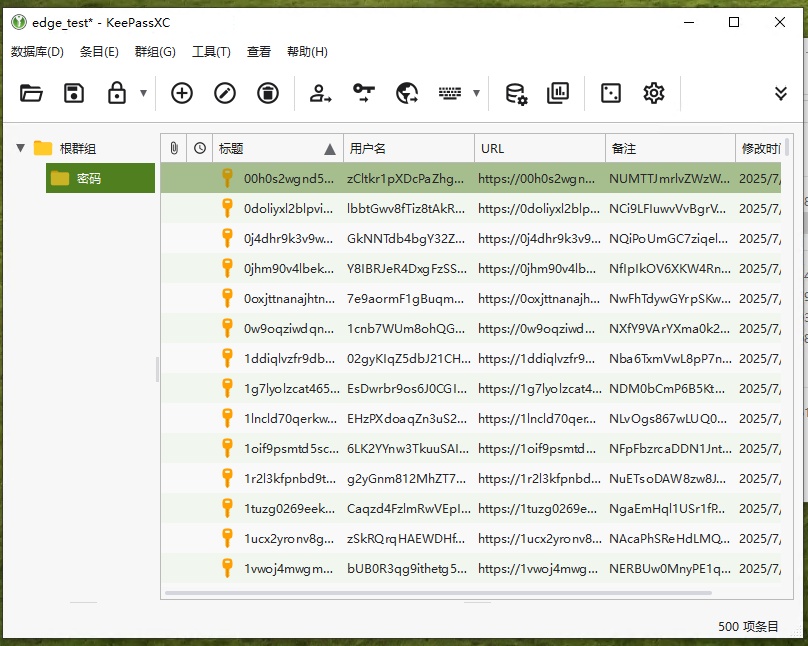
Import the data.
-
Optimize and edit the grouping.
-
Save and import into MeXkey3.