

MeXkey3 New
MeXkey3 Menu Explanation
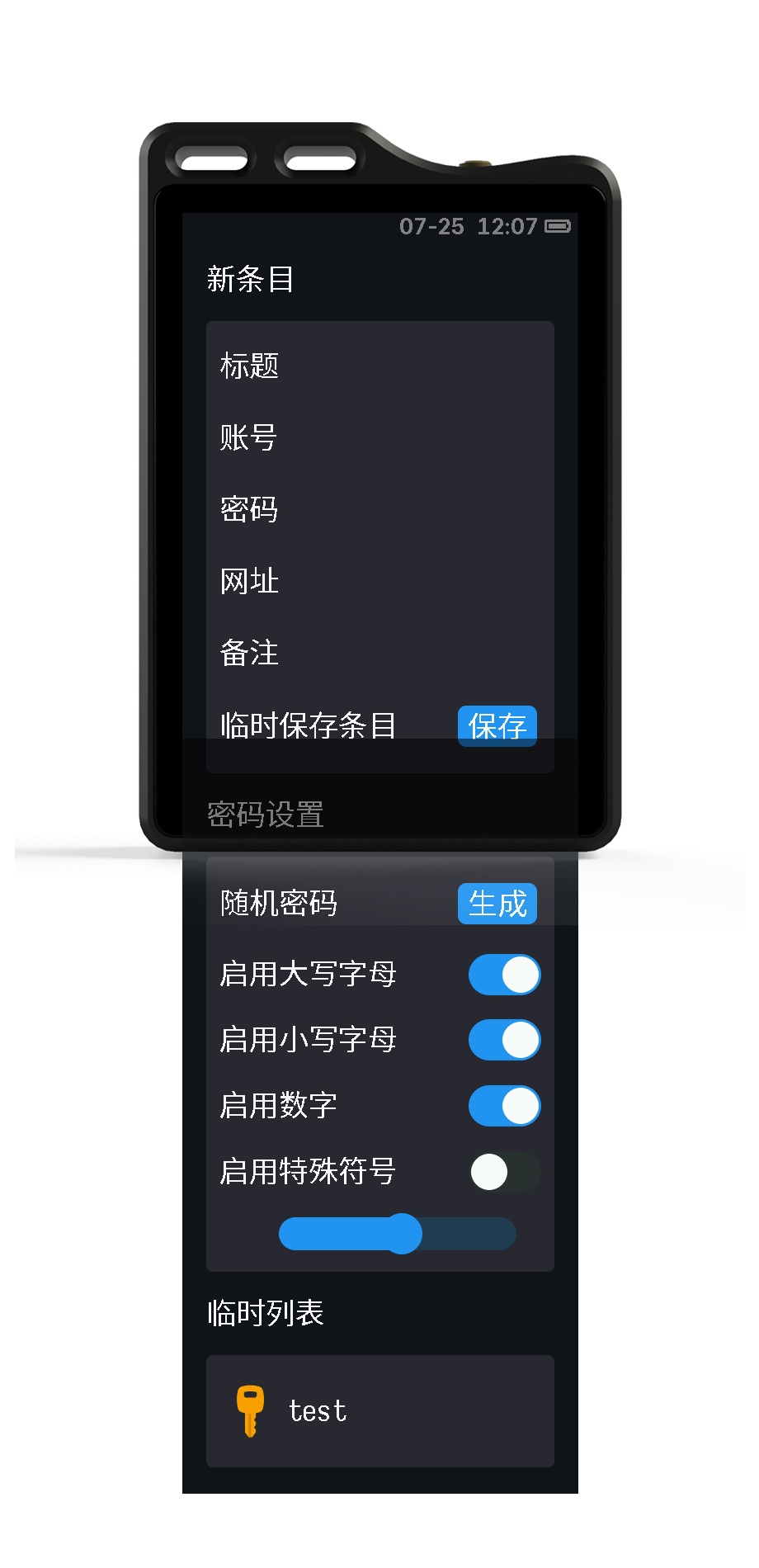
New Entry
-
Briefly press the corresponding entry here to send the content via HID to a computer or phone.
-
Swipe left and tap here to edit the content.
-
Click
Save Tempto save the content from the new entry page to the temporary list and the csv file.WarningThe content under New Entry is temporarily saved and will be deleted when you leave this page!
Please back up your data in time!
Password Settings
Random Password: After clicking generate, a random password will be generated according to the password settings below and filled into thePasswordfield of the new entry.Include Uppercase Letters: IncludesABCDEFGHIJKLMNOPQRSTUVWXYZInclude Lowercase Letters: IncludesabcdefghijklmnopqrstuvwxyzInclude Numbers: Includes0123456789Include Special Symbols: Includes!\"#$%&'()*+,-./:;<=>?@[\\]^_`{|}~Password Length: Minimum 1, maximum 64 characters.
TIP
If you just want to fill in a random password,
You can generate a random password here, then click on the generated password in the new entry to fill it.
Temporary List
- List of temporarily saved items.
- Click on an entry to view it.
- A
temp.csvfile is also generated on the USB drive, making it easy to import into the kdbx file.
temp.csv File
- File for temporarily saved entries.
- If it has already been imported into kdbx, you can delete it. After deletion, it will be automatically recreated.
- You can use
Reload Databasein theSettingsto reload its content.
Importing to Kdbx
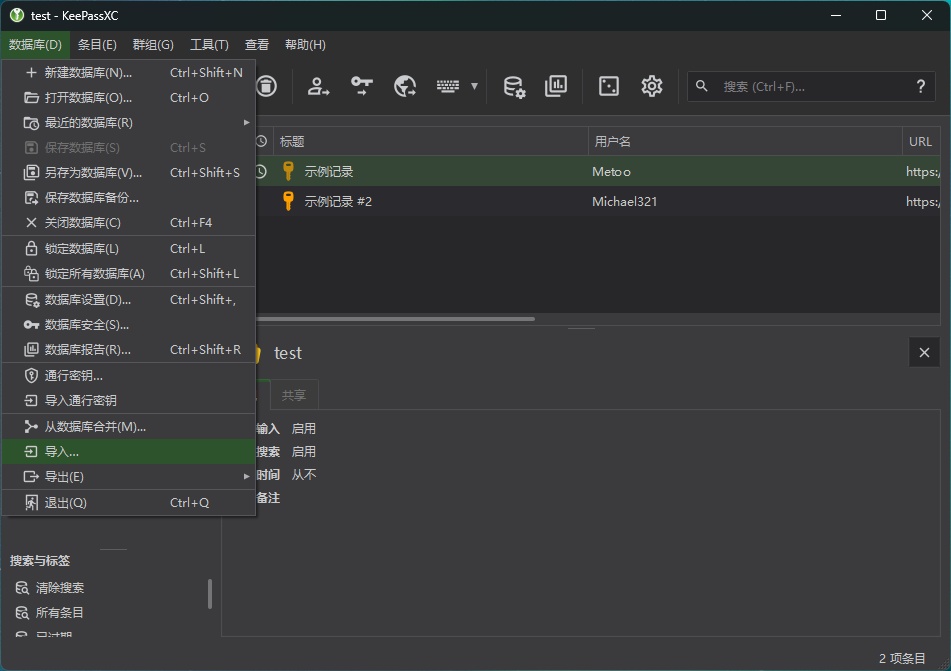
- Select Import.
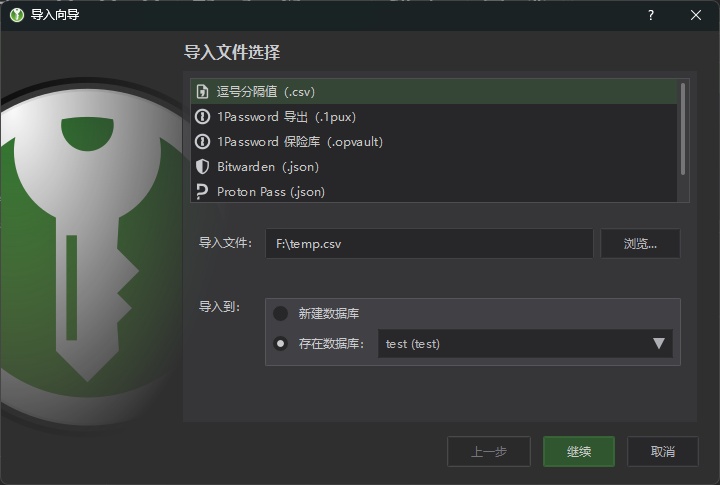
- Choose the file and select the import location.
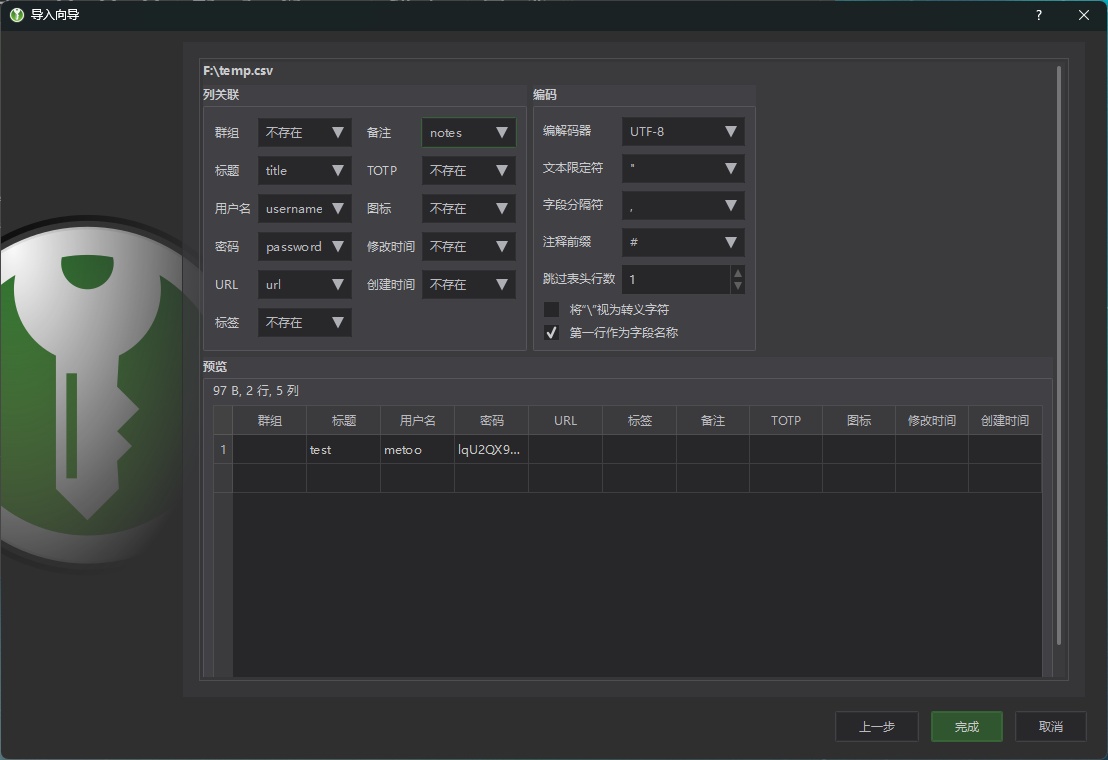
- Configure the import parameters as shown in the image. After importing, you can see the imported content under the
Passwordsdirectory.
ON THIS PAGE